Exporting Custom Dashboards
Custom dashboards can be exported in the PDF format with or without widget notes. Exported PDF files display dashboard names, dashboard descriptions, snapshots of the widgets included in the dashboard from the time of export, and widget notes. You can export any custom dashboard to which you have access, including dashboards you have created, shared custom dashboards created by organization members, and themed custom dashboards created by the Anomali Threat Research team. Additionally, you can export individual dashboard widgets in the PNG format.
To export custom dashboards in the PDF format:
-
Click Dashboard in the top navigation menu.
-
Navigate to the dashboard you want to export.
- Click Export PDF.

- In the window that opens, review the notes of every widget. If necessary, update the notes and click Save Note.
If you want to exclude notes from the export, select Exclude notes from export.
- Click Export PDF to start the downloading process.
If your browser is configured to use a pop-up blocker, you will see the following message:
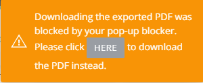
Click Here to download the PDF.
Widget tables have default columns set for optimal PDF viewing.
- Widget tables that contain more than four columns are given a dedicated row in the downloaded file.
- Due to space limitations, notes containing over 400 characters may not be fully visible in the downloaded file.
To export custom dashboard widgets in the PNG format:
-
Click Dashboard in the top navigation menu.
-
Navigate to the dashboard containing the widget of interest.
-
Locate the widget and click the export icon.
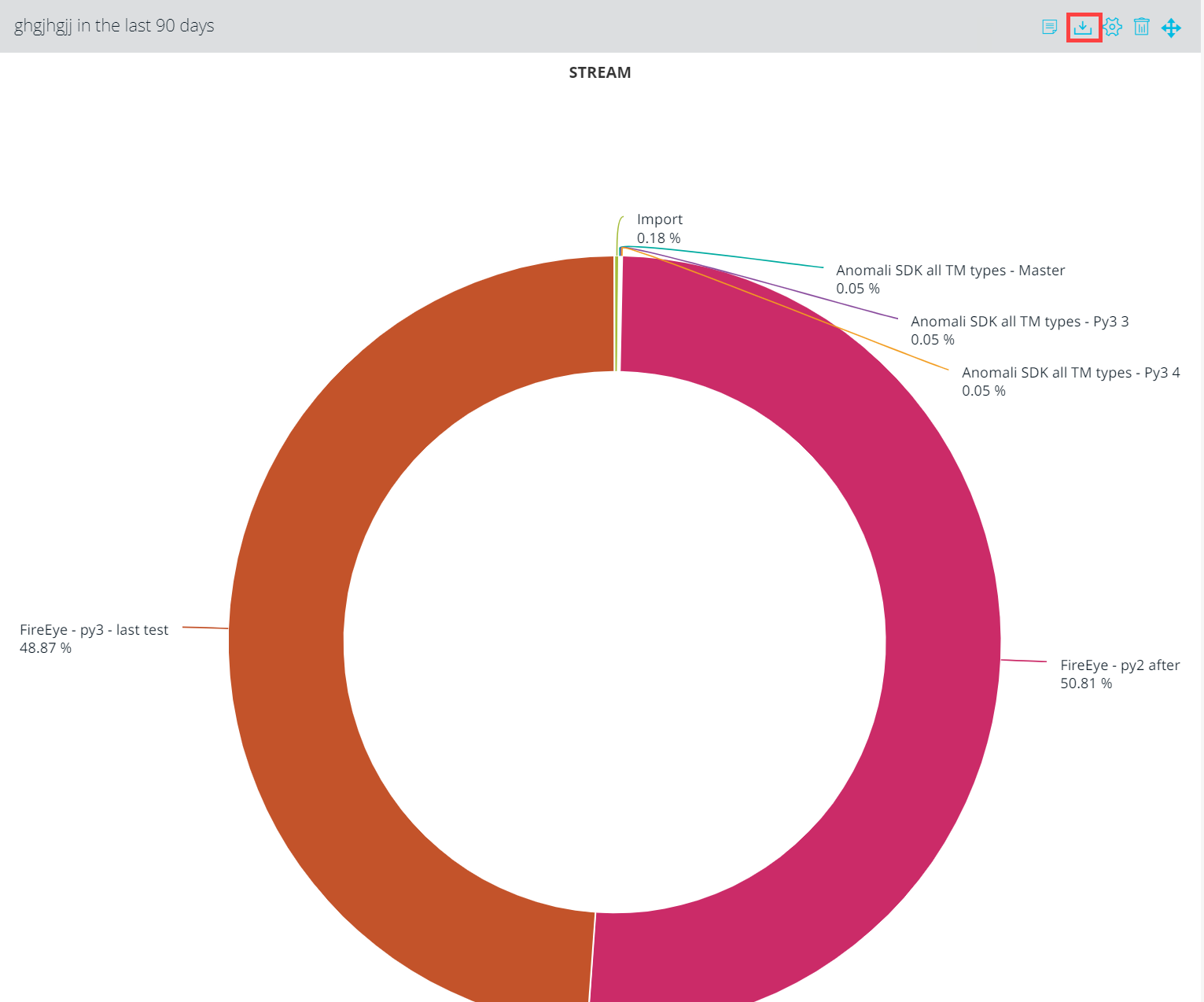
The download begins automatically.